Choose the output before choosing the command
A misspelled guest name, an unwanted filler word in captions, and an unnecessary spoken sentence are different editing problems. Treating all three as text deletion can change the interview when you only intended to clean up its transcript. Write the desired result in two parts: what viewers should hear and what they should read.
This guide compares Descript's current documentation. We have not performed the edits or verified an export in your account. The proposed checks below are an exercise to run on your own material, not evidence that a particular project or plan has passed. Older tutorials may use different menus or shortcuts; prefer the current named operation over a remembered keystroke.
Three operations, three different outcomes
A text correction does not make the speaker say something different. If the recording contains a factual mistake, correcting the caption alone can create a disagreement between sound and text. Decide whether the production needs an explicit correction, a new recording, or a clearly explained edit instead of silently replacing what the speaker said.
| Your intended result | Documented operation | What changes | Check afterward |
|---|---|---|---|
| Fix a name that was transcribed incorrectly | Correct | Transcript text; underlying audio/video stays unchanged | Spelling, alignment, and the original spoken name |
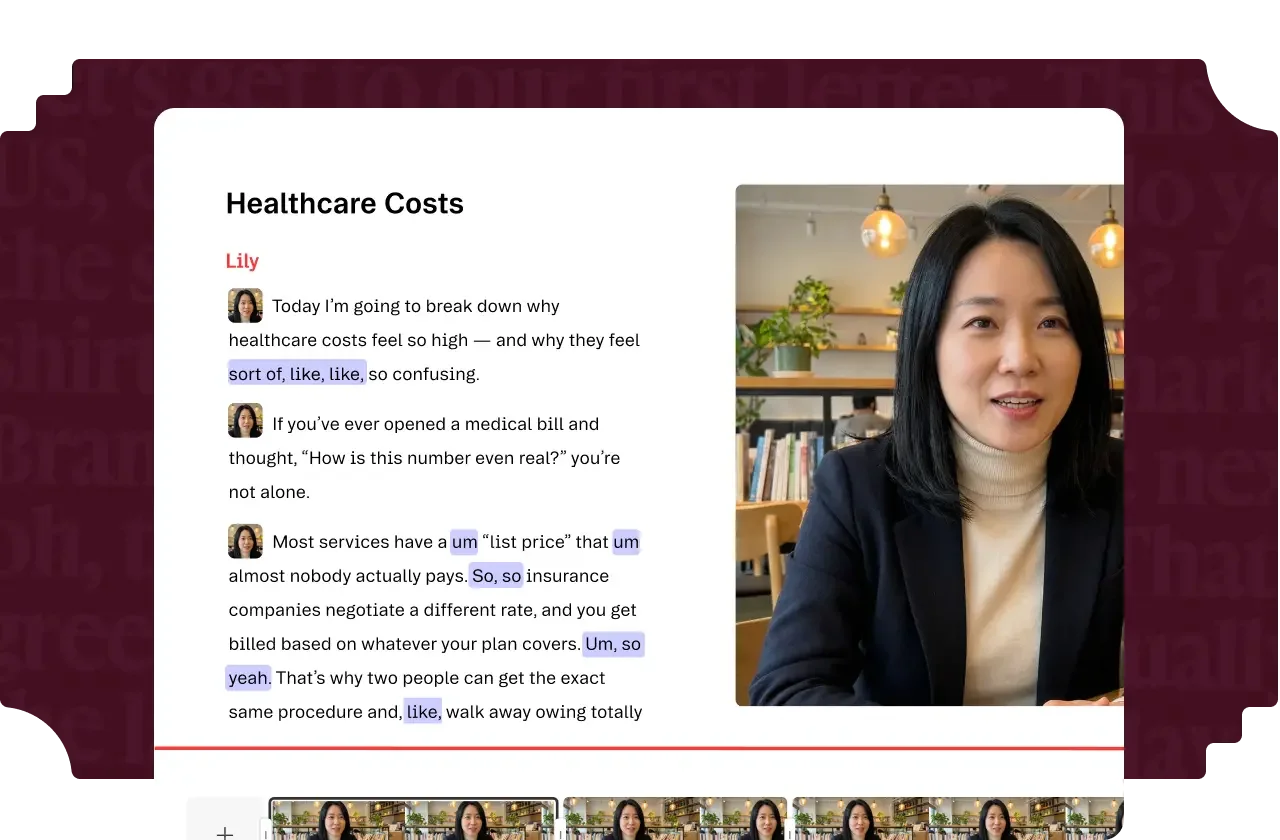
| Keep a spoken filler word but omit it from captions | Remove from transcript | The word disappears from script, captions, and exported transcript; media remains | The word is still audible but absent from the text export |
| Remove an unnecessary spoken phrase | Delete or Backspace on selected script text | Selected content is removed from the composition's transcript and media | The cut, surrounding speech, and resulting duration |
Find the named operation in the current editor
Descript's correction guide says to select a word, choose Correct from the hover toolbar, and enter the intended text. Correct applies to one instance; Correct All applies the replacement throughout the project. For a name that appears in several contexts, inspect those contexts before making the broader change.
For caption-only removal, the editing guide describes right-clicking the selected text and choosing Remove from transcript. Ordinary Delete or Backspace has a different effect: it removes the selected material from the composition. Descript describes this editing as non-destructive and provides Restore removed media at an edit boundary. That distinction does not replace keeping an untouched reference for comparison.
Run a small check before applying an edit everywhere
Choose a short owned recording containing one name, one filler word, and a sentence you could omit. Keep an untouched copy or reference. Record the starting duration and the words you expect to hear. Make one kind of change at a time so you can identify which operation produced the result.
Play from before the edit until after it. Then inspect the specific output you intend to publish: caption file, written transcript, or captioned video. A clean editor preview does not establish that the downloaded deliverable has the same text, timing, or sound. Do not describe the exercise as successful until that output has been checked.
- A caption-only edit shortened or changed the speech: pause and inspect the selected operation before continuing.
- The name looks correct but the audio says something else: determine whether this is a transcription error or a factual correction.
- A bulk replacement changed an unrelated word: review its scope and restore the unintended changes.
- Captions drift around the edit: inspect alignment and compare the exported result with playback.
Your next step
Start with one edit and write down the intended audio and text outcomes. If your current access lets you inspect the required output, use that exercise before buying more features. If an export is unavailable, check the exact restriction first. A subscription decision should follow the missing capability, not the assumption that every transcript problem requires an upgrade.
Your next step / Review the option
Descript
Investigate for transcript-led editing and turning existing recordings into finished videos.
Free option; Hobbyist $24/month or $192 annually per person
Media and AI allowances differ. Check the required export and project handoff before paying.
Ordinary provider link. No affiliate partnership claimed. Link disclosure
Questions before you decide
Can I fix a transcript without changing the recording?
Yes. Descript documents Correct as changing transcript text while leaving underlying audio and video unchanged. Check the resulting text and alignment before publishing.
Can I remove a filler word from captions but keep it audible?
Descript documents Remove from transcript for that distinction. Ordinary deletion changes the edited media too. Inspect your actual export rather than relying only on the script view.
Does Correct replace what the speaker says?
No. It corrects the written transcript. If the spoken statement itself needs changing, treat that as a separate editorial decision and review the resulting audio and text together.
Sources & verification
Product details and prices can change. Check the linked provider before buying.
- Descript: Correct your transcript Accessed 2026-09-13
- Descript: Edit like a doc Accessed 2026-09-13
Sources link directly to providers. Product buttons may use separately labeled affiliate links. Read our disclosure.